iPhone · iOS 26 or later
Every cut lands on the beat.
Pick a beat, add your clips, and ChaosCut cuts them into a story reel where every transition hits the music. Star the best moments, trim, polish, export — about a minute.
Free public beta. Opens in Apple’s TestFlight app.
This is the real beat map of Run Like Crazy, one of the tracks that ships in the app. Each cell is a beat window; your clips fill them in order, so every switch lands on a hit.
Four steps, about a minute.
- 01
Pick a beat
Start a reel with one of the bundled tracks, a song of your own, or the sound from a video. The beat decides the reel's length and energy.
- 02
Add your clips
Pick videos and photos from your library. They're sorted by when they were taken, so the reel tells the day in order, and the auto-cut puts a new shot on every cut.
- 03
Star, trim, switch off
Star the moments that must make it in. Trim what shouldn't. Turn any clip off. Too many clips? ChaosCut keeps the liveliest ones, spread across the whole day.
- 04
Polish and export
Add a title or a sticker if you want one, then export a vertical 9:16 video straight to your photo library.
What it looks like.
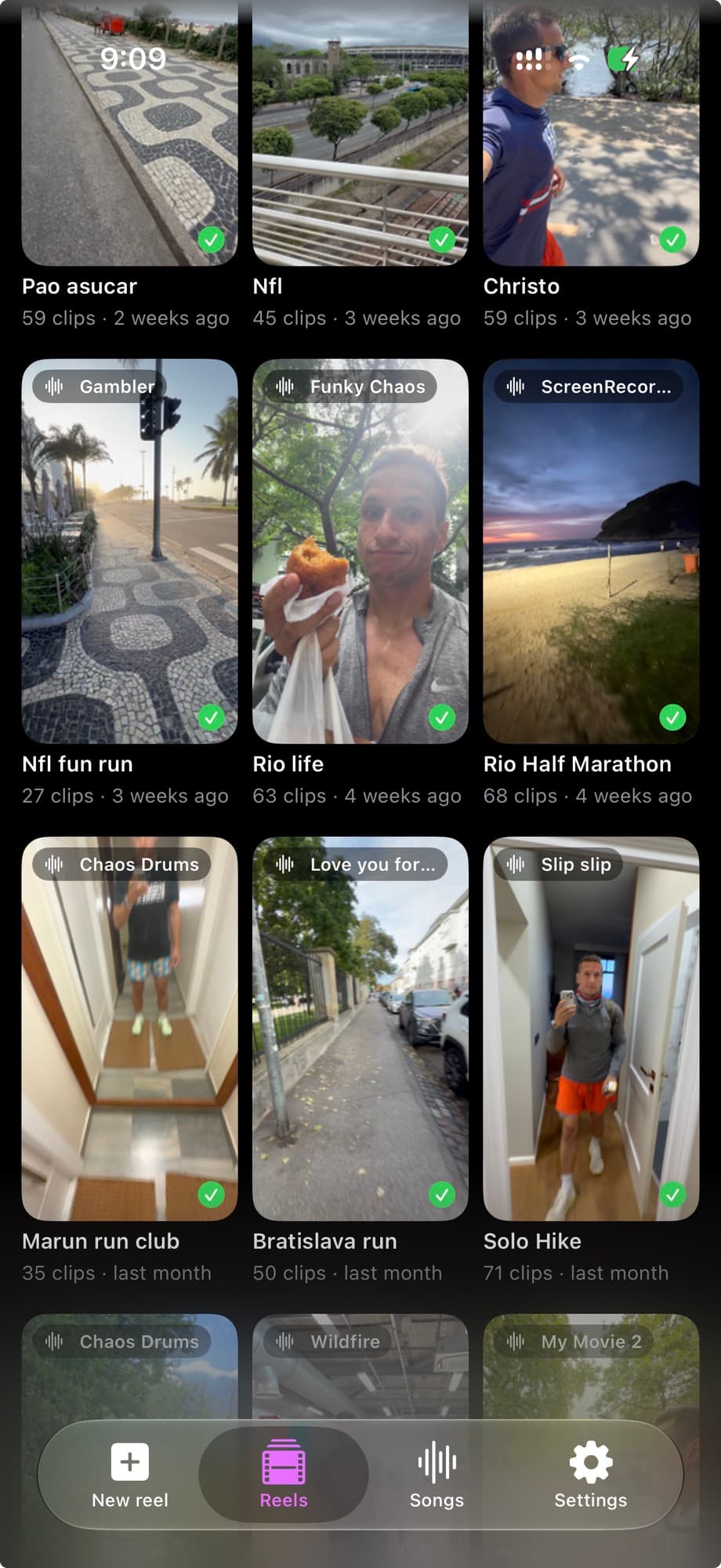
Your reels
Every reel you've made, each with the beat it's cut to.
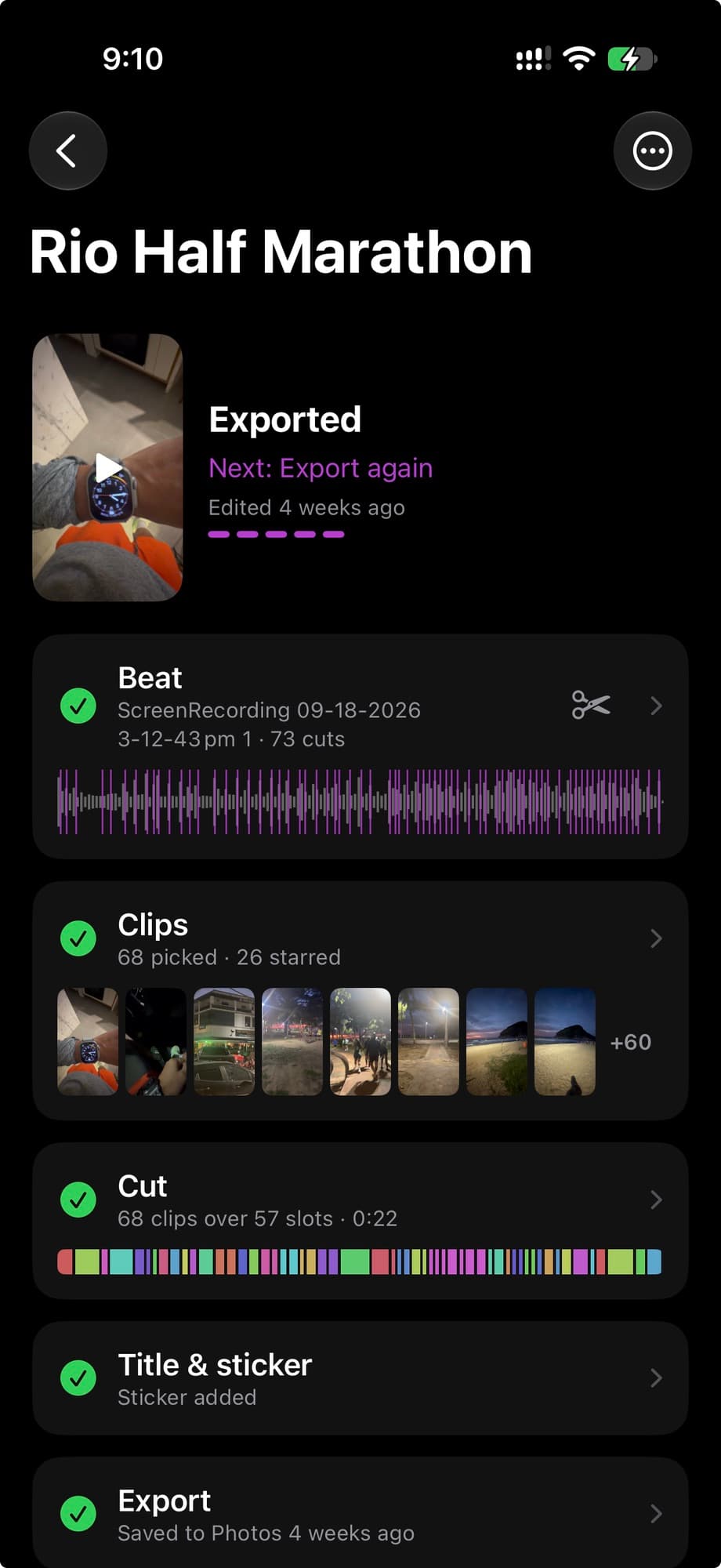
One reel, step by step
Beat, clips, cut, title, export — and what's next.
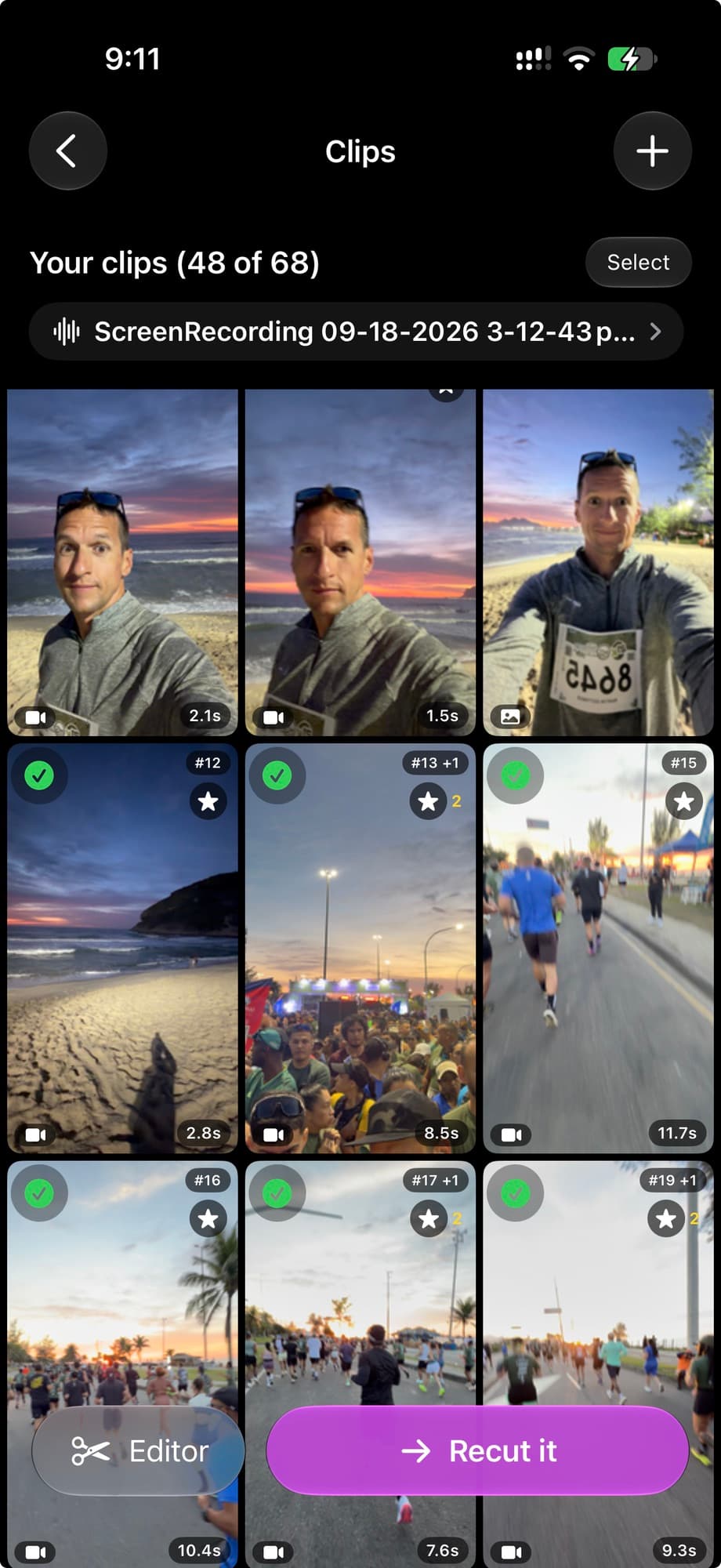
Your clips
Star the must-haves, switch off the rest.
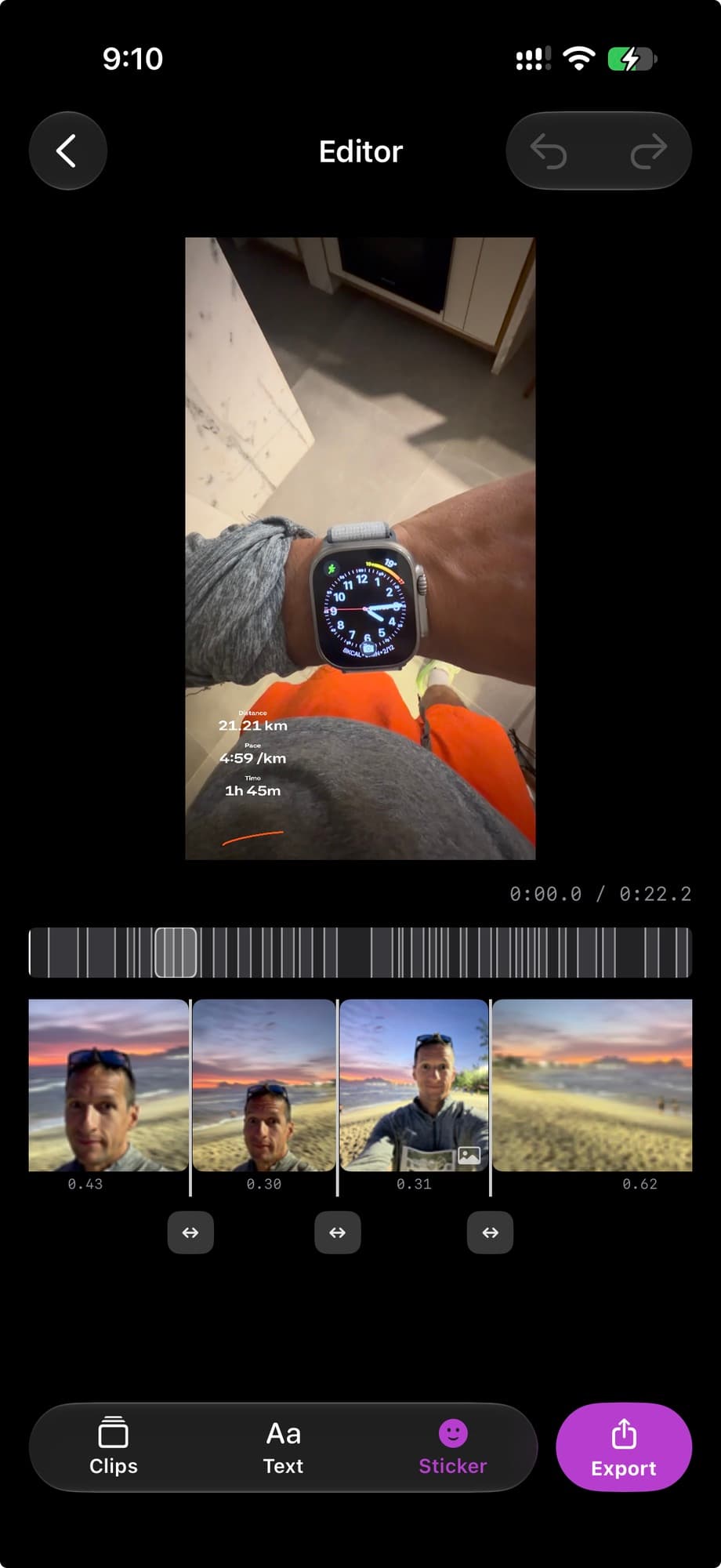
The editor
Move cuts, swap clips, add a title or sticker.
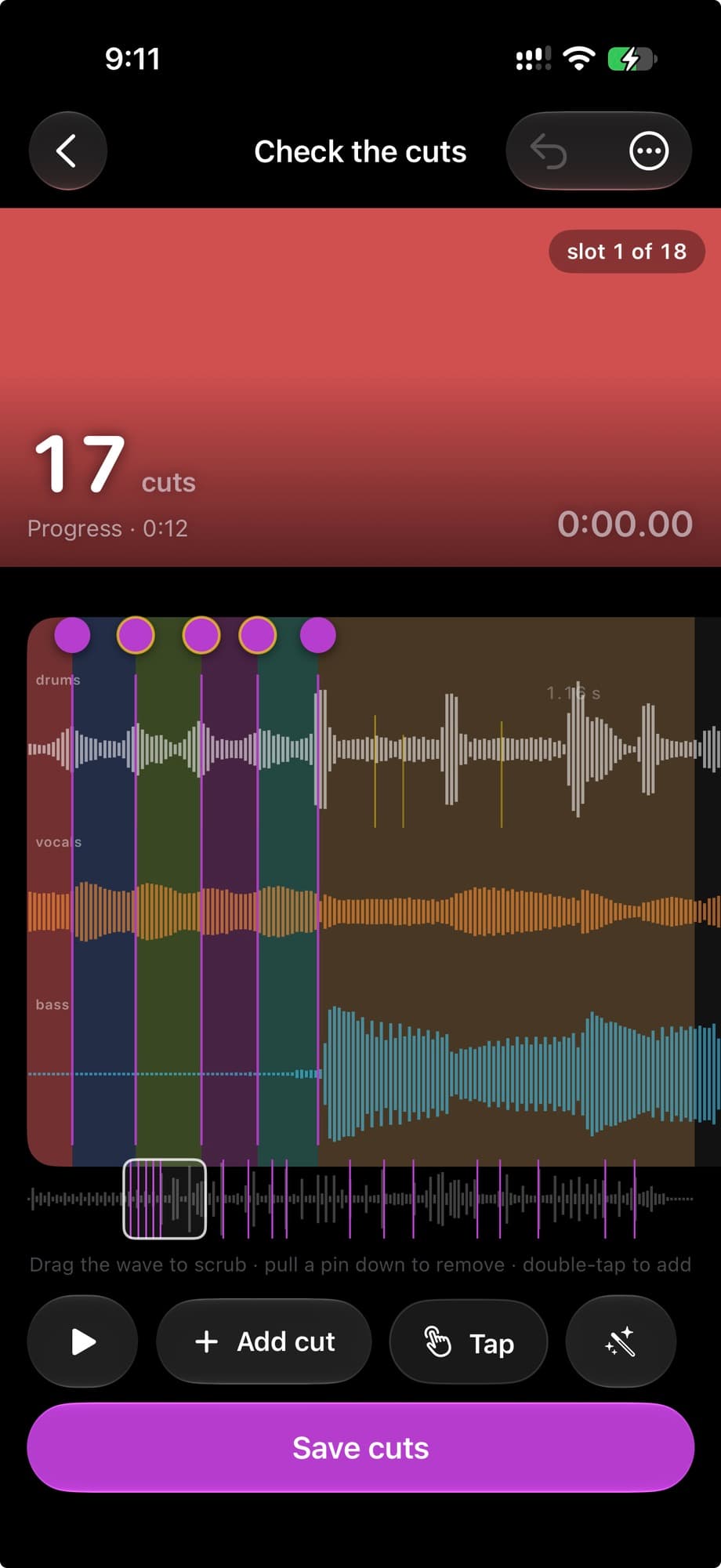
Check the cuts
See drums, vocals and bass, and put every cut where you want it.
A real editor when you want one.
The auto-cut is the default, not the ceiling. Open the timeline and change anything — cuts snap to the music while you do.
- Move any cut
- Pinch deep into the timeline and drag a boundary. It snaps to the nearest hit in the music.
- Scrub inside a clip
- Slide the footage under its beat window to choose exactly which slice plays.
- Replace, remove, reorder
- Swap the clip in any segment, remove a segment, merge two, or move clips around.
- Undo and redo
- Every edit is reversible. A minimap keeps the whole reel in view while you're zoomed in.
- Your own songs
- Add a song or a video's sound and ChaosCut finds the cuts on your phone. Check them, tap your own along to the music, or place every one by hand.
- Autosave
- Reels pick up exactly where you left off.
- Made for stories
- 1080×1920 vertical, ready for Instagram Stories and anywhere else vertical video lives.

Nothing leaves your phone.
Analysis, cutting and export all run on the device. No account, no uploads, no analytics — ChaosCut has no servers to send anything to.
Read the privacy policy →